01
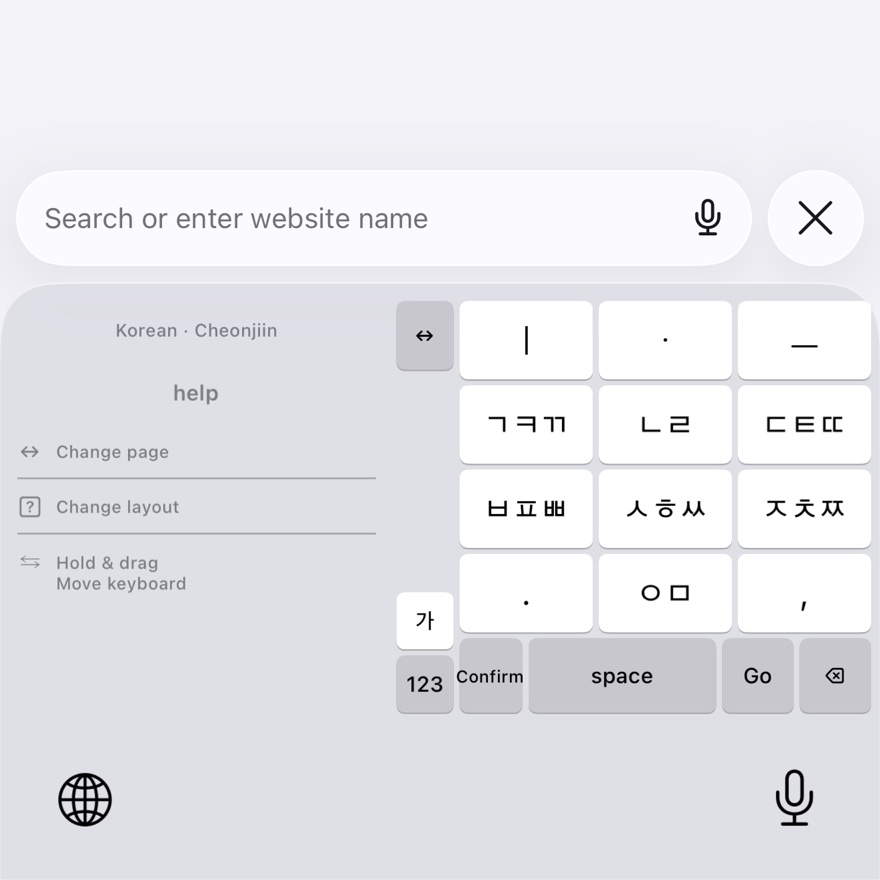
Korean Dubeolsik
The standard Dubeolsik layout split into pages within one-handed reach.
One hand, when you need it
Even if you usually type with both hands, there are moments when only one is available. UmgiTab brings familiar Korean and English layouts within thumb’s reach.
iPhone · Android · Core typing works offline
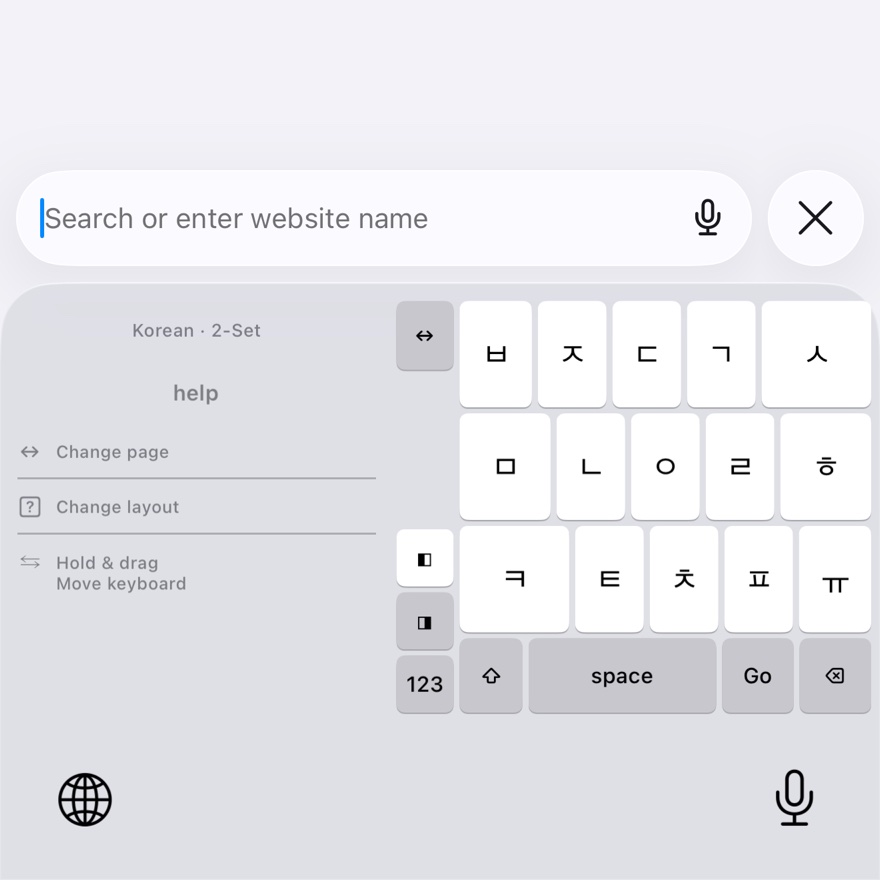
Actual iPhone screenKorean Dubeolsik · Right hand
Available now
01
The standard Dubeolsik layout split into pages within one-handed reach.
02
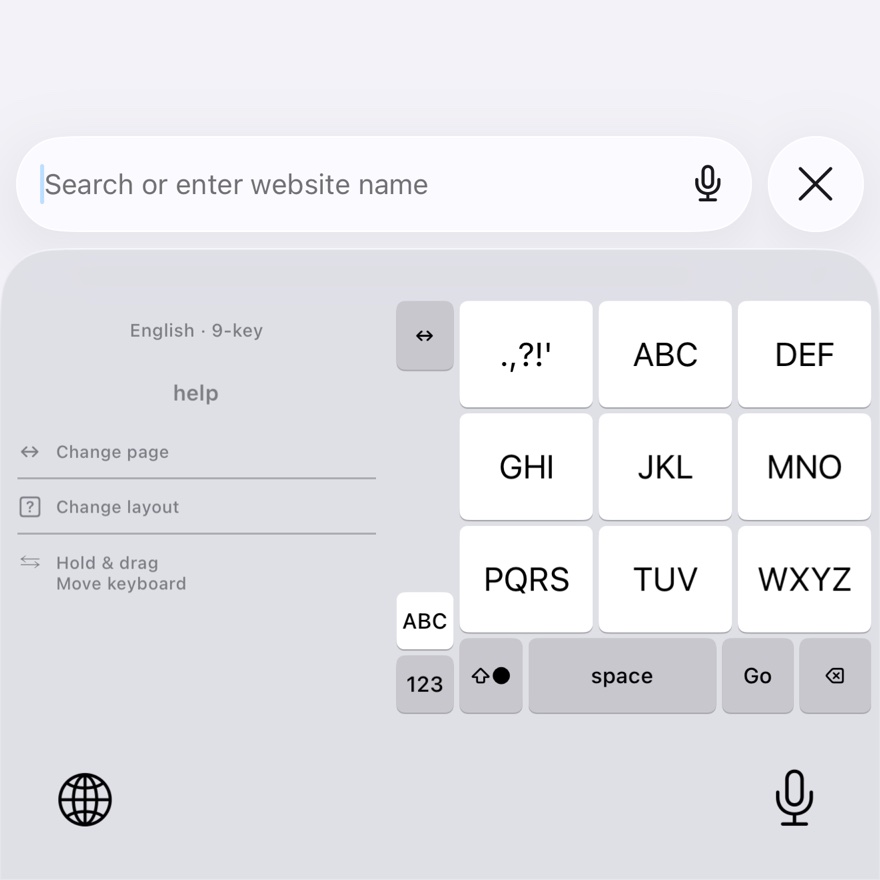
A 3×4 layout with consonant cycling and vowel composition.
03
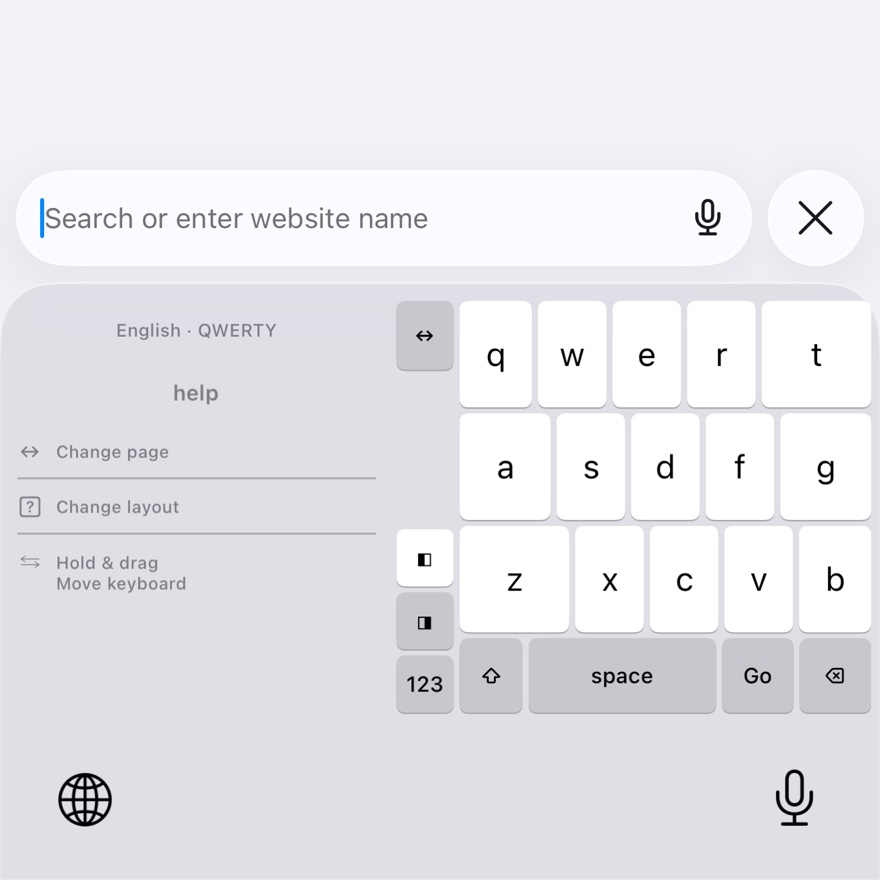
Familiar QWERTY letters with a visible Shift state.
04
Dictionary-free multi-tap input, not predictive T9.
05
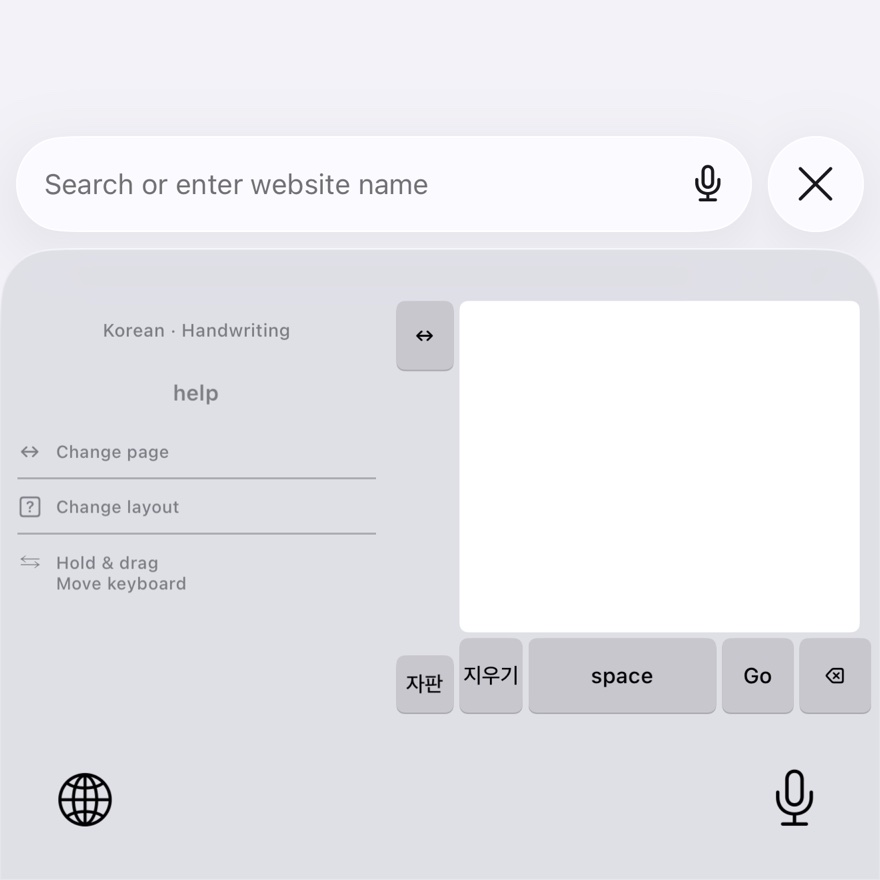
Available after downloading the model in the app; recognition runs on your device, offline.
Swipe horizontallyChange keyboard pages
Swipe verticallyChange input layouts
Hold and drag SpaceMove the cursor
Privacy by default
A keyboard should help you write, not watch what you write.
Read the Privacy Policy →Get started
iPhone
Core typing and handwriting work without Full Access. Find Mio in the sticker area of the system emoji keyboard.
Android
Menu names vary by manufacturer and Android version.